Google Ad Manager (PPS)
Publisher Provided Signals are the categories a page reports about itself. Google Ad Manager controls which of them it passes on, and to which demand channels, and this page is where that is set. Six steps in the Ad Manager interface, and none of them needs code.
Integration with GAM (Using PPS) is one of the two routes that make up Neuwo Bid Enrichment. Switching the signals on is one half of it. The other half is getting Neuwo's categories onto the page in the first place, and that half is the one people miss: Where the categories come from sets out the three ways to arrange it.
Before you start
- Google Ad Manager 360. Publisher Provided Signals is a 360 feature, and Google states it plainly: the screen below is not there on standard Ad Manager. Nothing on this page applies without it.
- An account that can change Demand channel settings. The screen sits under Delivery, and saving it takes more than read access.
- A source of Neuwo categories on the page. Publisher Provided Signals is a switch rather than a source: Ad Manager passes on what the page hands it and passes on nothing until something hands it something. Where the categories come from is the three ways to arrange that, and the Prebid module is the usual one. The order does not matter, so this screen can be done first.
Selecting a screenshot opens it at full size. On a small screen that is the only way to read the interface detail.
Step 1: Open Demand channel settings
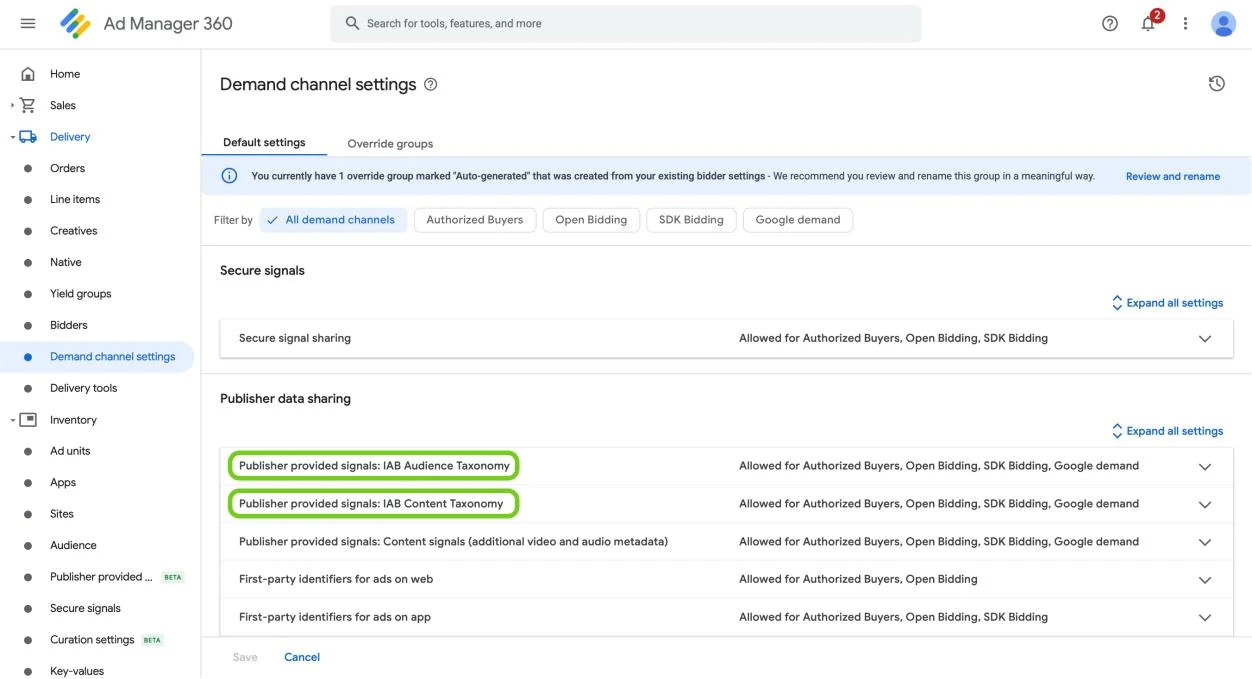
Sign in to Google Ad Manager, then open Delivery in the left-hand menu.
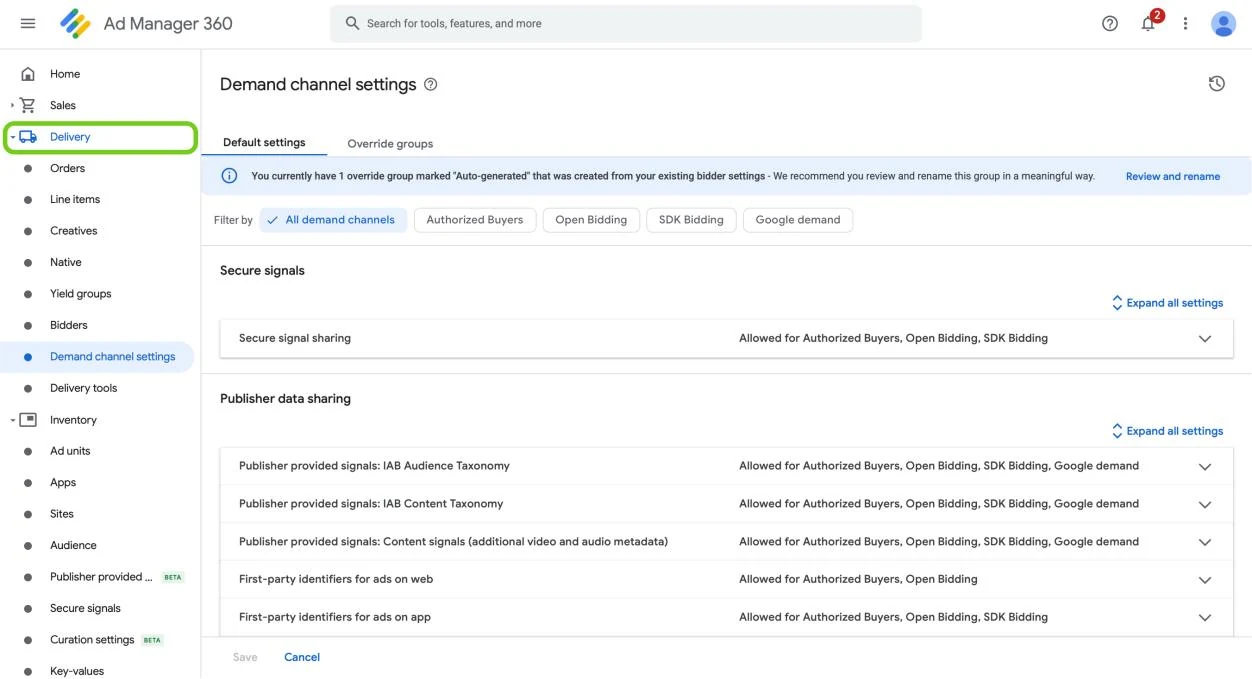
Choose Demand channel settings, near the bottom of what unfolds.
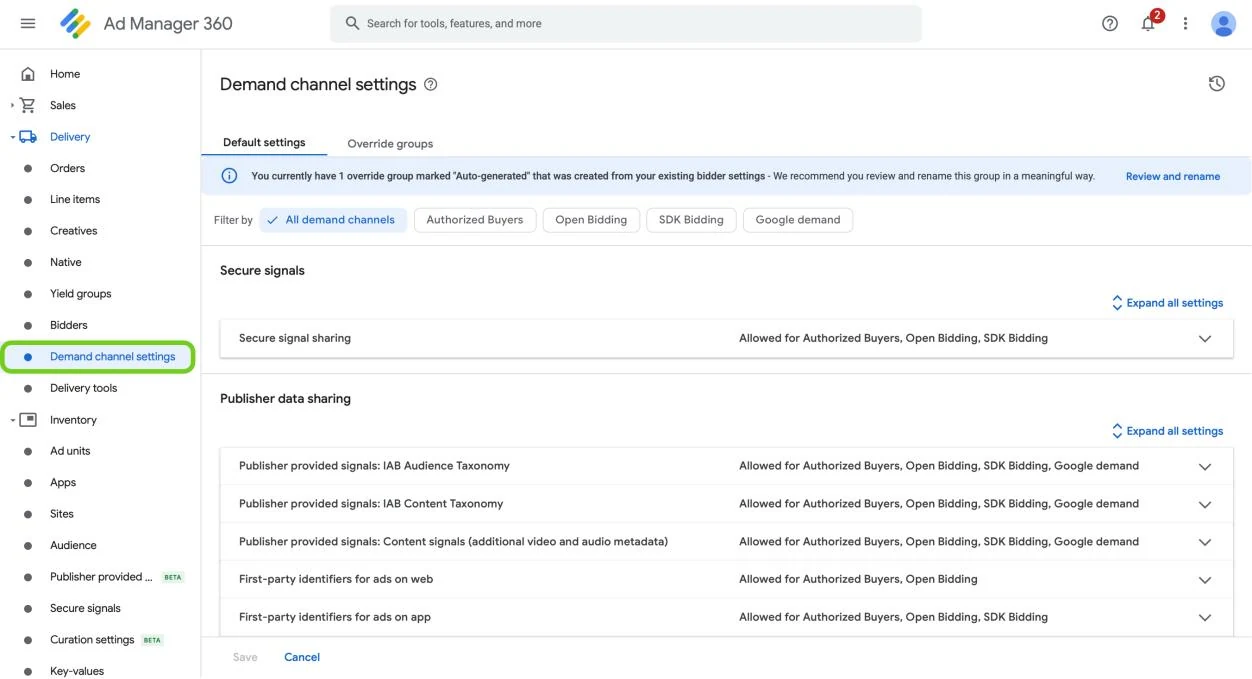
Step 2: Find Publisher data sharing
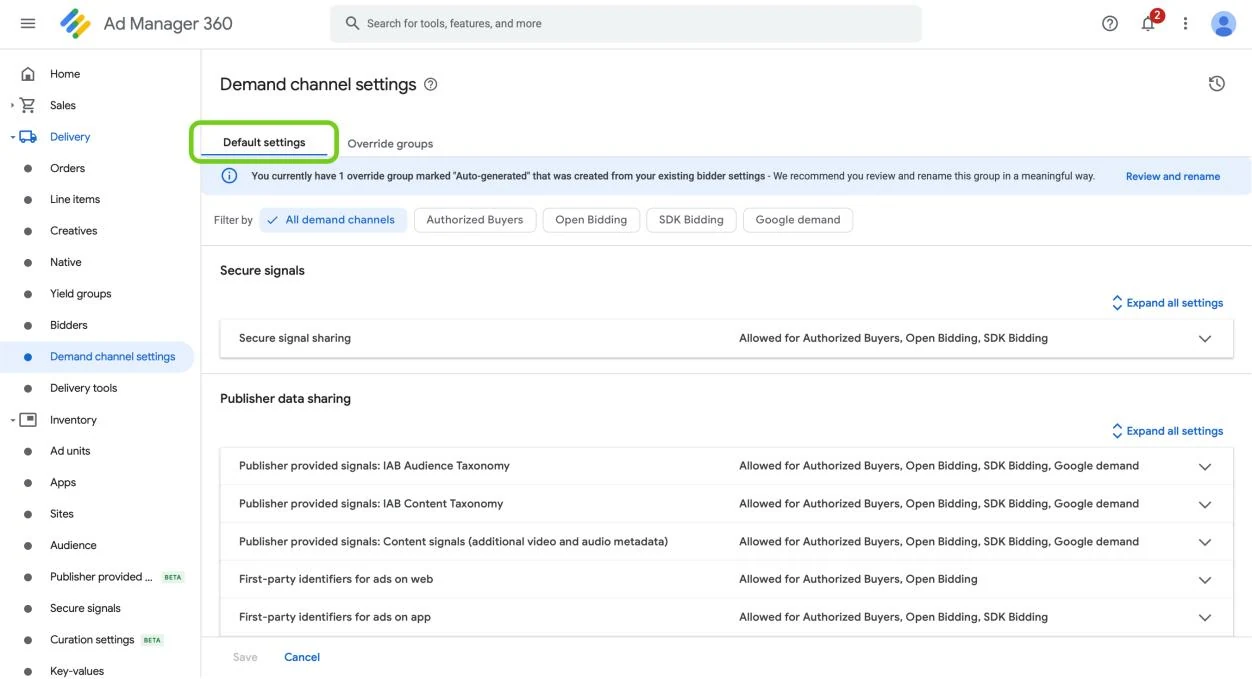
The page opens on the Default settings tab, which is the one you want. Override groups is for exceptions to those defaults and is not part of this.
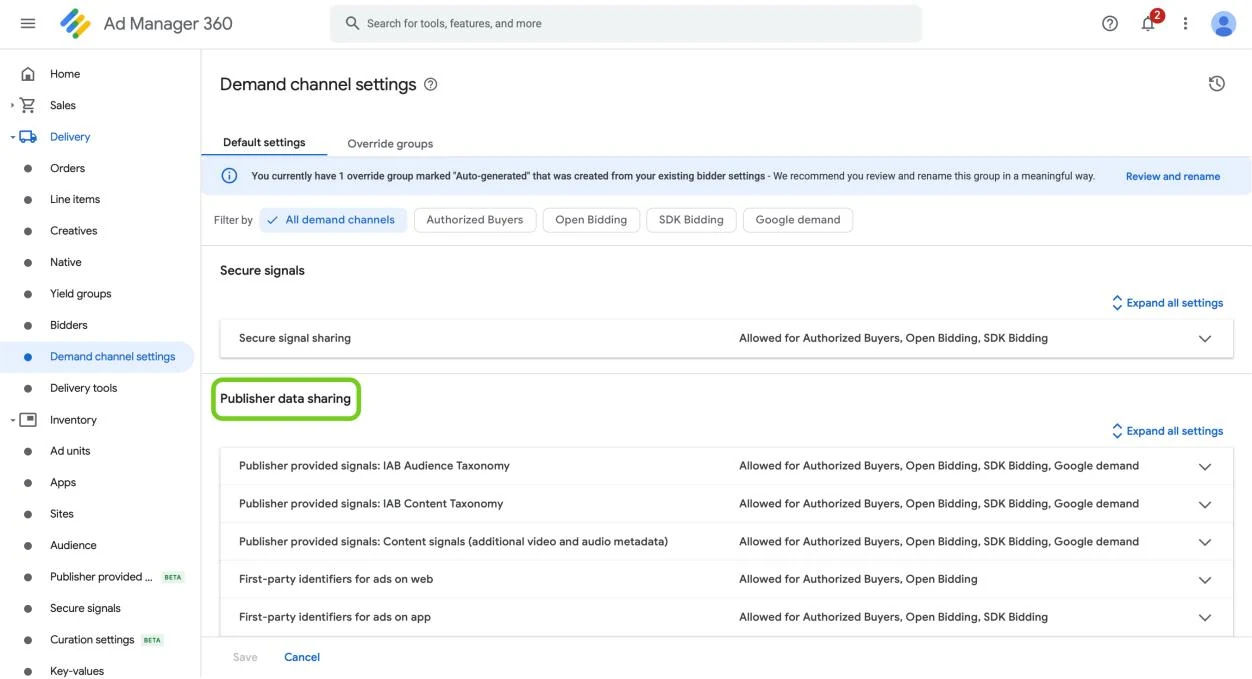
Scroll past Secure signals to Publisher data sharing.
Step 3: Choose a signal type
Publisher data sharing lists several kinds of signal. Two of them are Neuwo's:
- Publisher provided signals: IAB Audience Taxonomy
- Publisher provided signals: IAB Content Taxonomy
Neuwo returns both, so both rows need doing. The others on that list cover video and audio metadata and first-party identifiers, none of which carry contextual categories, so leave them as they are.
Click one of the two to open it.
Step 4: Turn on your demand channels
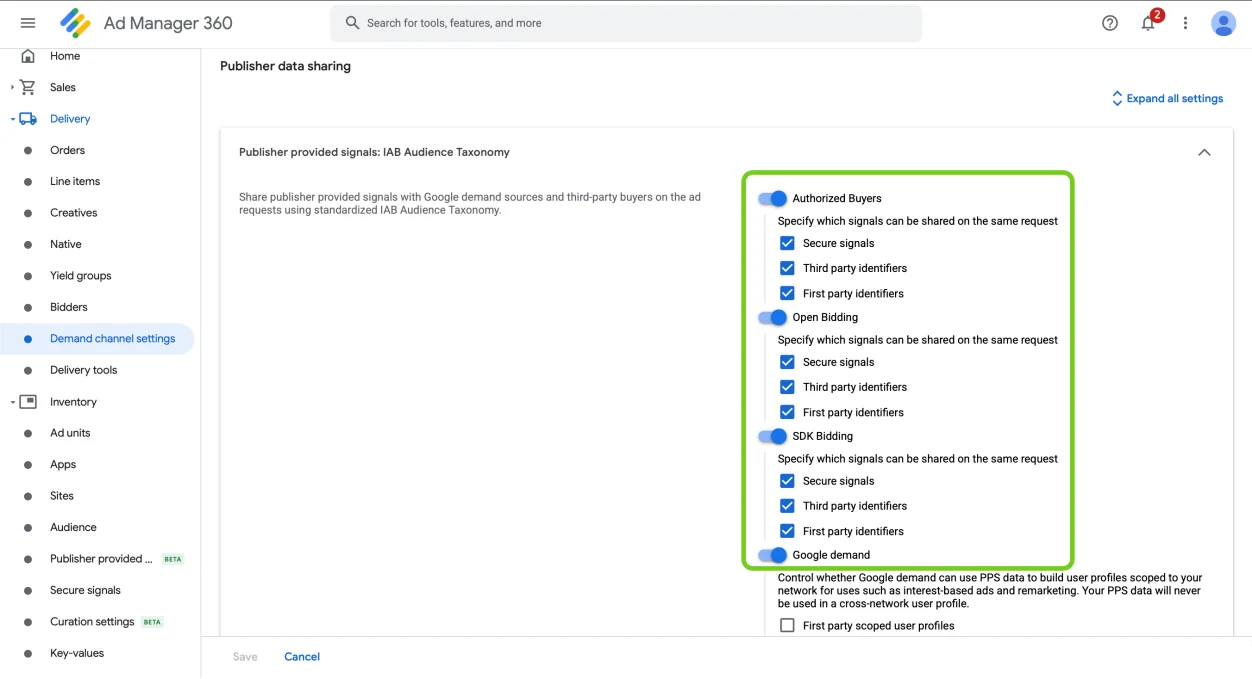
Each demand channel has its own switch: Authorized Buyers, Open Bidding, SDK Bidding and Google demand, that last one covering the Open Auction, Private Auction, Preferred Deals and Programmatic Guaranteed. A channel left off never receives the categories, however good they are.
Neuwo recommends turning on every demand channel. The categories describe the page rather than the reader, so there is little reason to withhold them from a buyer you already sell to.
Step 5: Choose what travels with the signal
Under each channel is what may go on the same ad request: Secure signals, Third party identifiers and First party identifiers. Tick the ones that match your setup.
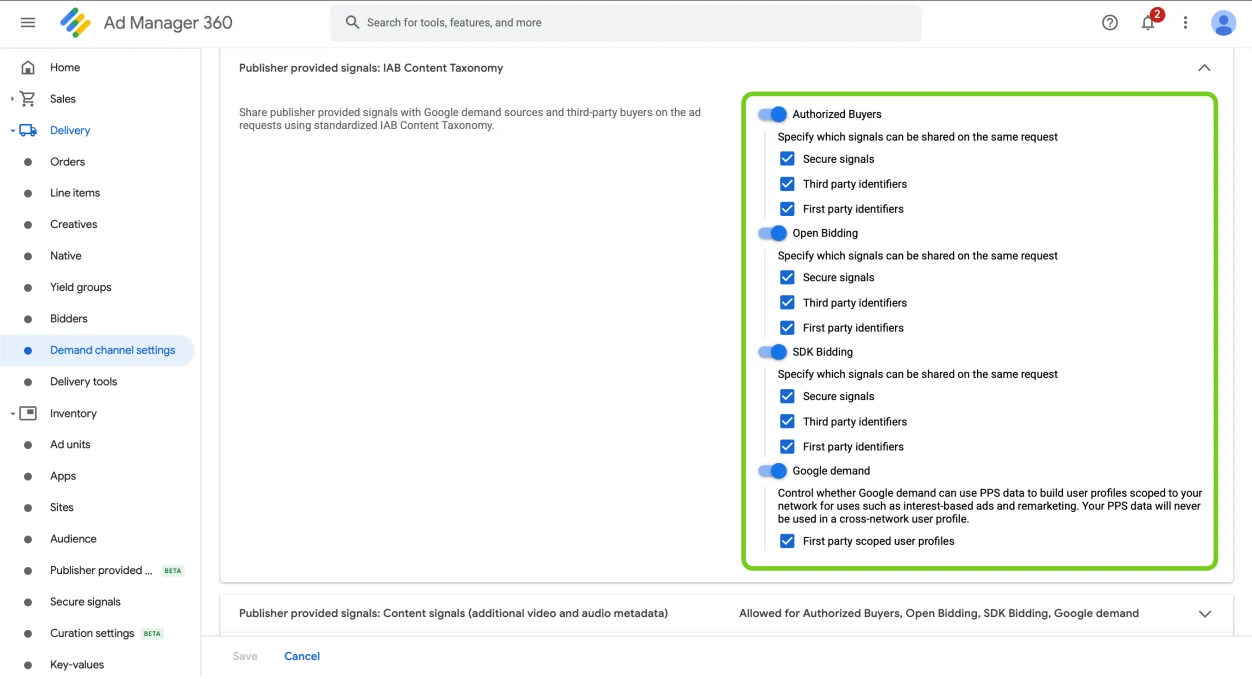
Google demand carries one box the others do not, First party scoped user profiles, and it is the only choice on this screen that is a policy question rather than plumbing. Ad Manager describes it as controlling whether Google demand may use the signals to build user profiles scoped to your own network, for uses such as interest-based ads and remarketing, and says the data is never used in a profile spanning networks. Leave that one to whoever owns that decision at your company.
Step 6: Save, then do the other taxonomy
Save is at the bottom of the section, and nothing takes effect until it is pressed.
Then go back to Step 3 and repeat all of it for the other taxonomy. The two rows are configured separately, so setting up content categories does nothing for audience categories.
Check it worked
Back on the Publisher data sharing list, each row summarises itself on the right, naming the channels now switched on: "Allowed for Authorized Buyers, Open Bidding, SDK Bidding, Google demand". A row naming fewer channels than you chose did not save.
That confirms Ad Manager will accept the categories. Whether it is receiving any is a different question, and your reporting answers it once they are actually being sent.
Where the categories come from
Switching the signals on does not produce them. Everything above governs what Ad Manager may pass on to your demand channels; the categories themselves are put on the page by something else, and there are three ways to arrange that.
As part of the Neuwo Monetisation Platform
Neuwo sets this up, the Ad Manager side included, so this page describes what was done rather than giving you a job. What runs on the page, and what the arrangement covers: As part of Neuwo Monetisation Platform.
With the Neuwo module in Prebid
This is the usual route, and the one to plan for unless you have a reason not to. The module runs before each auction and attaches the categories to every bid request, so they travel with the auction and Google is one of the bidders receiving them. What these screens then decide is which of your demand channels Ad Manager passes them on to.
Setting the module up, step by step: Prebid Module. Putting the categories on the ad request itself, as signals rather than leaving them in the auction: Sending the Categories to Google Ad Manager as PPS.
From your own code, at ad request time
Google Publisher Tag accepts the categories directly, so a page with no Prebid on it can still supply them. Fetch them from the EDGE API and pass the IDs to googletag.setConfig before the first ad request. Ad Manager recognises two taxonomy keys for this, IAB_AUDIENCE_1_1 and IAB_CONTENT_2_2, and Neuwo returns both of them.
Neuwo's response is keyed by taxonomy and then by tier, so each taxonomy's IDs are one flatten away from the array Ad Manager wants:
const params = new URLSearchParams({
  token: "<Your Neuwo API Token>",
  url: location.href,
});
params.append("iabVersions", "4");
params.append("iabVersions", "6");

fetch("<Your Neuwo Edge API Endpoint URL>/edge/v1/iab?" + params)
  .then((response) => (response.ok ? response.json() : {}))
  .then((body) => {
    const segments = (version) =>
      Object.values(body[version] || {})
        .flat()
        .map((s) => String(s.id));

    const content = segments("6");
    const audience = segments("4");

    const taxonomies = {};
    if (content.length) {
      taxonomies.IAB_CONTENT_2_2 = { values: content };
    }
    if (audience.length) {
      taxonomies.IAB_AUDIENCE_1_1 = { values: audience };
    }

    if (!Object.keys(taxonomies).length) {
      return;
    }

    googletag.cmd.push(function () {
      googletag.setConfig({ pps: { taxonomies: taxonomies } });
    });
  });
4 and 6 are how the Neuwo API names those same two taxonomies, IAB Audience Taxonomy 1.1 and IAB Content Taxonomy 2.2. Asking for them by number is what keeps the response lined up with Ad Manager's two keys, and leaving iabVersions off gets you a different pair.
An empty result sends nothing at all, which matters because setConfig replaces the whole pps object rather than merging into it. The first view of a page Neuwo has not analysed yet comes back with no categories, and the page should keep whatever it already had rather than overwrite it with nothing.
This route is the one to reach for where there is no Prebid to put the module in. It is also the one you own: the caching, the taxonomy filtering and the URL cleaning that the module does are all things this code would have to do for itself, and the fetch has to land before the first ad request goes out. Where Prebid is already running, taking the categories out of the auction gets the same signals without any of that.
Other destinations in Ad Manager
Publisher Provided Signals is the tidiest destination, but once the categories are on the page they are ordinary values, and Ad Manager will also take them as key-values to target a line item on, or as a custom dimension to report on. Those are covered in Integration with GAM (Using PPS).
References
Google's documentation for the Ad Manager and Google Publisher Tag features described above.
- About publisher provided signals. An overview of Publisher Provided Signals, its availability and the demand channels it supports.
- Enable taxonomies in Google Ad Manager. Configuring taxonomy sharing for each demand channel, the procedure set out above.
- Share publisher provided signals at time of ad request. Sending signals with each ad request rather than mapping them in advance.
- Map key-values and audience segments to taxonomies. Mapping existing key-values and audience segments onto the supported taxonomies, and the taxonomy versions Ad Manager accepts.
googletag.config.PublisherProvidedSignalsConfig. The Google Publisher Tag configuration interface for publisher provided signals.